Personal Limits — your minimums, checked hour by hour
Enter your personal minimums once — maximum crosswind, gust and tailwind, minimum ceiling and visibility — and ClearToFly checks every forecast hour against them: on the meteogram, in the airfield popup on the maps, on the cross-section page and in the AI Route Brief. All four use the same rules, so they always agree.
The five limits
Each limit means exactly one thing, and every page reads it the same way:
- Max crosswind (incl. gusts), kt — caps both the steady and the gust crosswind component on the runway you'd use. Leave it blank and the maximum demonstrated crosswind of the aircraft under My Aircraft is used instead; a value you enter here wins over the aircraft's figure.
- Max gust (any direction), kt — caps the peak gust speed, whatever its direction. It is not the gust spread (gust minus mean wind).
- Max tailwind (steady), kt — caps the steady tailwind component on the runway you'd use. Tailwind gusts are covered by the gust limit.
- Min ceiling, ft AGL — above the airfield, like the ceiling map, even when the meteogram shows heights AMSL.
- Min visibility, km — horizontal surface visibility.
A stored limit is never laxer than what you typed: maxima round down, minima round up (whole knots, ceiling in whole feet, visibility to 0.1 km). A value outside the accepted range is not saved.
How an hour is judged
Every forecast step gets one of four results:
- Within limits (green) — every limit you set is met.
- Near limit (amber) — a wind value is within 2 kt of its limit, or exactly on it. Ceiling and visibility have no amber zone: they are either met or not.
- Outside limits (red) — at least one limit is exceeded.
- No data (grey) — a value a limit needs is missing from the forecast. Missing data never counts as a pass.
A few rules behind the verdict:
- Best runway, every hour. Crosswind and tailwind are judged on whichever runway end meets your limits best at that hour — the question is "can I land here?", not "on the runway shown in the crosswind chart". So a 0 kt tailwind limit doesn't fail hours where you'd simply land the other way. The verdict names the runway end it used.
- Gusts are the forecast peak gust since the previous step, and the gust crosswind is checked against the same crosswind limit as the steady wind.
- Calm (under 1 kt) counts as 0 kt crosswind and tailwind.
- No runway data: at airfields without runway data — and at cities — crosswind and tailwind can't be checked; the page says so, and the other limits are still checked.
Where you'll see it
Meteogram
A Personal Limits strip at the top of the meteogram colours every forecast step green, amber, red or grey. Hover (or tap) a step for every check with its value and limit, e.g. Gust 22 kt (max 20) or Ceiling 1200 ft AGL (min 1500). Below the strip, one line summarises the visible range from now on: Within limits 09:00–13:00 · Outside limits 13:00–16:00 · … Within- and near-limit windows shorter than 2 hours are left out of that line — a single good hour between bad ones isn't a flying window — while outside-limit and no-data hours are always listed. The strip itself still shows every step. Edit limits at the end of the line opens the settings.

Each limit you set also appears as a dashed line on its own panel: the gust limit on Wind (with the area above it shaded), the minimum ceiling on Cloud Cover, the minimum visibility on Visibility, and the crosswind limit on Crosswind. A limit far above today's values doesn't stretch the chart: you get a label at the top edge instead (Gust limit 20 kt ↑), and the line appears once the forecast gets close. The strip appears as soon as one Personal Limits field is set; choosing an aircraft alone doesn't add it. See How to read a meteogram.
Map airfield popup
On every map, tapping an airfield shows two extra lines in its popup when you've set limits:
- the verdict at the time on the map's slider, e.g. 14:00 Outside · Ceiling 767 ft AGL (min 1500) — the worst check, its runway end for a wind limit, and +2 if two more checks are near or outside their limits too;
- a thin bar for that day (00–24 local), one cell per forecast step, past hours dimmed and a tick at the slider time. Tap it to open that day's meteogram.
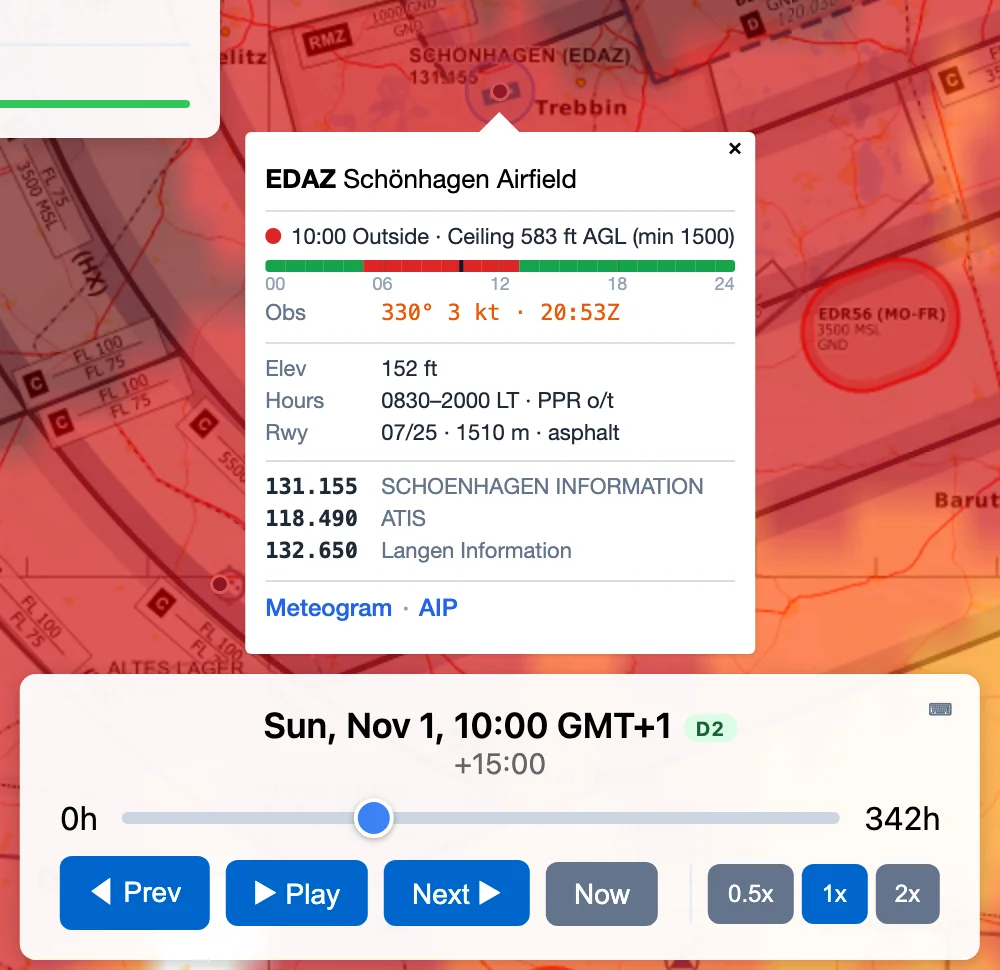
Move the slider and the popup follows. Right after a new forecast run arrives the popup may say Forecast still loading or Newer forecast available — reload the map; it never mixes the map's run with another.
Cross-section
A Your limits panel under the time slider treats the slider time as your departure: it checks the departure airfield at that time and the destination at your no-wind arrival time (route distance divided by your aircraft's cruise speed). Without an aircraft set, only the departure is checked. See How to read a cross-section.
AI Route Brief
The brief receives your limits and judges every departure window: wind and gust at the departure airfield at departure and at the destination at your no-wind arrival time, plus the lowest ceiling and visibility along the route. A window outside your limits is never recommended; if none is inside them, the brief says so and names the limit that fails most often. Each runway's crosswind is judged against your crosswind limit (or, if you haven't set one, the aircraft's demonstrated crosswind); the demonstrated value is then shown only for reference.
Picking sensible numbers
- Start from your aircraft's maximum demonstrated crosswind and take off what your currency doesn't cover — a demonstrated value is what a test pilot showed, not a limit for a pilot who hasn't landed in a crosswind for two months.
- Set the gust limit separately: a strong gust straight down the runway passes the crosswind check but can still be more than you want on short final.
- Choose the tailwind limit with your POH's tailwind corrections for takeoff and landing distance in mind — a few knots lengthen both noticeably on a short strip.
- Set ceiling and visibility above the legal VFR minima, with room for the forecast being wrong: a forecast ceiling of 1,500 ft can turn out to be 1,000 ft.